Recently, some of my customers were having problems converting raster graphics into vector graphics with the Inkscape Program that I show you in the information manual (www.glassetchingsecrets.com/info.html). This is still working for me very nicely, so I would like to figure this out so that it works with others as well. Right now, I would like to make sure that these tips are being followed.
First, after the conversion is done with the steps I showed, you will need to make sure that the raster is removed and deleted. Sometimes it’s hard to tell which one is the raster, so move them to the side of each other and zoom up on them. By zooming up on the graphics, you will be able to see which one has jagged edges. Delete this one and save the vector as a “.eps” by following the picture below:
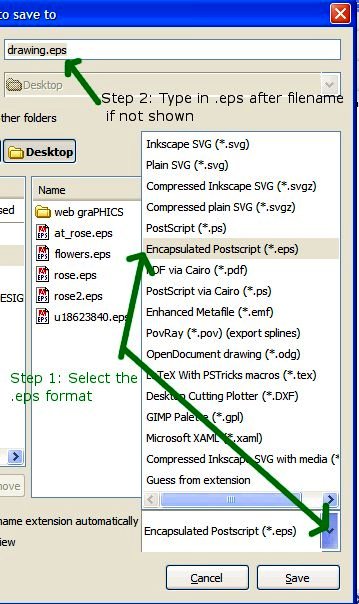
When you are ready to save the newly converted graphic, click save as and then click the bottom drop-down menu as shown in the picture above. You would have to click on “Encapsulated Postscript“. Now, look in the top file name box, and make sure that the file name extension has been changed to “.eps”. Sometimes it doesn’t automatically change over to this file extension, so all you would have to do is simply delete the old file name extension and type in “.eps”.
If it says “drawing.jpg”, change it to “drawing.eps”. Other than this, the software should be working correctly. If you did all this and still doesn’t work, the only thing that I can think of is that you’re computer doesn’t meet the minimum requirements for either Inkscape or the Sign Software. Try these tips out, and then let me know if it works or not.
Share this on social media or email by clicking below!